


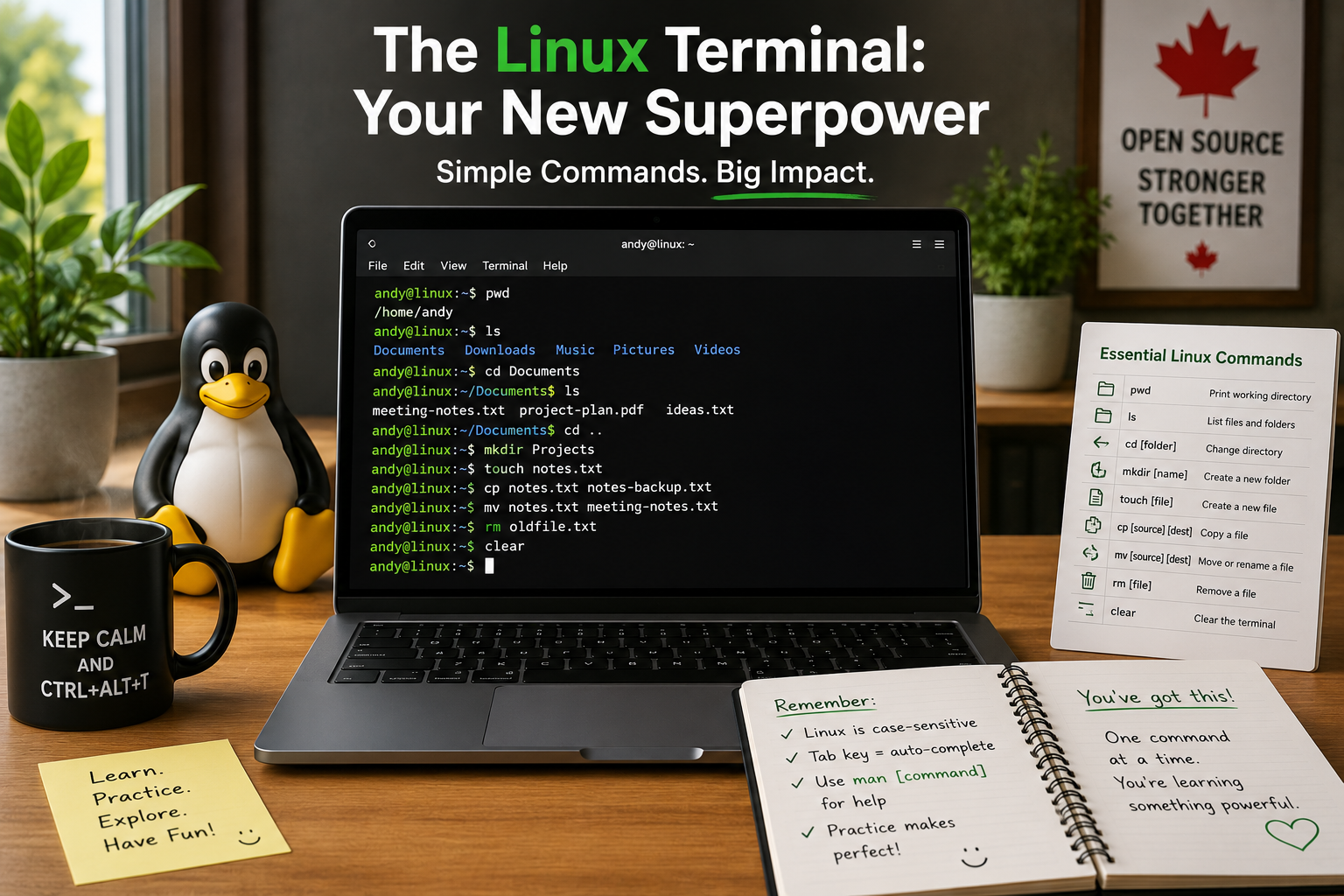
Learning Linux Series
For many people moving to Linux, there is one thing that seems a little intimidating.
The Terminal.
The moment someone opens a black window filled with text, it can feel like they've travelled back to the 1980s. Movies haven't helped either. Hollywood often shows hackers typing mysterious commands at lightning speed while colourful text races across the screen.
The reality couldn't be more different.
The Linux Terminal is simply another way to talk to your computer.
Think of it as having a conversation. Instead of clicking buttons with your mouse, you type short instructions, and your computer responds. Sometimes using the Terminal is faster than opening menus. Sometimes it's the only practical way to complete a task. But most importantly, it gives you a better understanding of how your computer works.
The good news is that you don't need to become an expert overnight. In fact, you can use Linux for years without ever opening the Terminal. However, learning just a few simple commands can make your life much easier.
Let's start with the most useful ones.
Where Am I?
Imagine you're standing in a large library.
Before you start looking for a book, you need to know where you are.
The same idea applies to Linux.
The first command many people learn is:
pwd
It stands for Print Working Directory.
That sounds complicated, but all it really means is:
"Tell me where I am."
If your computer replies with:
/home/andy
you're currently inside your personal folder.
You'll probably use this command less often as you become comfortable with Linux, but it's a great way to understand where you are in the file system.
What's Here?
Now that you know where you are, the next question is obvious.
"What files are in this folder?"
The command is:
ls
The letters stand for list.
When you press Enter, Linux displays everything inside the current folder.
You might see something like this:
Documents
Downloads
Music
Pictures
Videos
It's the same information you would see in your file manager, only shown as text.
If you want a little more detail, such as file sizes and dates, type:
ls -l
Don't worry about memorizing every option. Even experienced Linux users look things up from time to time.
Moving Around
Suppose you want to open your Documents folder.
Instead of double-clicking it, you tell Linux where you want to go.
cd Documents
The letters cd mean change directory.
Now you're inside the Documents folder.
Want to go back?
Simply type:
cd ..
The two dots tell Linux to move up one level.
It may seem strange at first, but after using it a few times it becomes second nature.
Creating Something New
Let's create a new folder.
The command is:
mkdir Projects
The word mkdir means make directory.
Linux immediately creates a folder called Projects.
Need another one?
Just change the name.
mkdir Photos
Simple.
Creating an Empty File
Suppose you want to create a new file.
The quickest way is:
touch notes.txt
Despite its unusual name, the touch command creates an empty file if one doesn't already exist.
Open your file manager and you'll see a new file called notes.txt waiting for you.
Copying Files
Imagine you've written an important document.
Before making changes, you decide to create a backup copy.
That's where the cp command comes in.
cp report.txt report-backup.txt
Now you have two identical files.
If something goes wrong, your original is still safe.
Moving and Renaming Files
The mv command has two jobs.
It can move a file from one folder to another.
It can also rename a file.
For example:
mv notes.txt meeting-notes.txt
The file still exists.
It simply has a new name.
Deleting Files
Eventually you'll want to remove something.
The command is:
rm oldfile.txt
Be careful.
Unlike the recycle bin, the Terminal usually deletes files immediately.
That's why it's always worth checking the filename before pressing Enter.
A good habit is to pause for a second and read the command one last time.
Clearing the Screen
After typing several commands, your Terminal can become cluttered.
Instead of closing it, simply type:
clear
Your screen becomes empty again, giving you a fresh workspace.
Don't Try to Memorize Everything
One mistake many beginners make is believing they have to remember dozens of commands.
You don't.
Most Linux users rely on the same small group of commands every day.
The more you use them, the more natural they become.
Before long, you'll find yourself opening the Terminal because it's actually the quickest way to get something done.
Canadian Perspective
Linux skills are becoming increasingly valuable across Canada. Universities, colleges, research institutions, technology companies, and many government organizations use Linux every day. Even learning a handful of basic Terminal commands can help you feel more confident using Linux and provide a strong foundation for exploring more advanced topics in the future.
Final Thoughts
The Terminal isn't something to fear.
It's simply another way to communicate with your computer.
Every experienced Linux user started with the same first command, made the same mistakes, and asked the same questions.
Take your time.
Try one command at a time.
Experiment.
You won't break Linux by learning.
And before long, the Terminal may become one of your favorite tools.